

User management
Browsing and searching the user list and viewing user details
User management is the first screen you see after signing in. It lets you browse every user registered in the deployment and view the details of an individual user.
User list
The list shows user information in a table.
| Column | Description |
|---|---|
| Username | The ID used to sign in |
| The email address registered to the account | |
| Status | Account status — see ‘Account status’ below |
| Last updated | The date the user information was last changed |
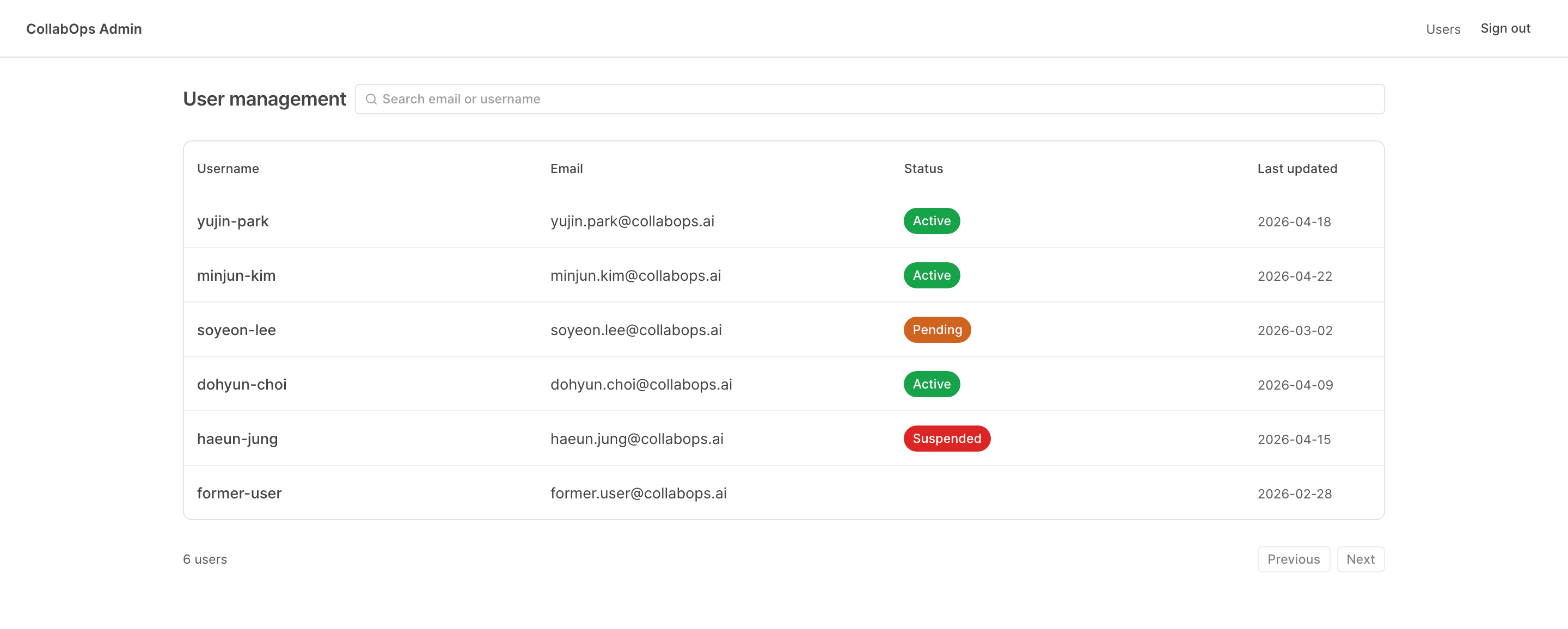
Search
Type part of an email or username into the search box above the list to filter it in real time. The search is case-insensitive, and a partial match is enough — you do not need an exact value.
Account status
| Status | Meaning |
|---|---|
| Active | An account in normal use |
| Pending | An account whose sign-up is not yet complete |
| Suspended | An account whose access is temporarily blocked |
| Deleted | An account that has been deleted |
User details
Click a row in the list to open that user's detail screen. The detail screen shows the following information.
| Field | Description |
|---|---|
| User ID | The internal identifier the system uses to distinguish the user |
| The email address registered to the account | |
| Display name | The name the user set — shown as ‘Not set’ if none |
| Status | Account status |
| Created | The date the account was created |
| Updated | The date the user information was last changed |
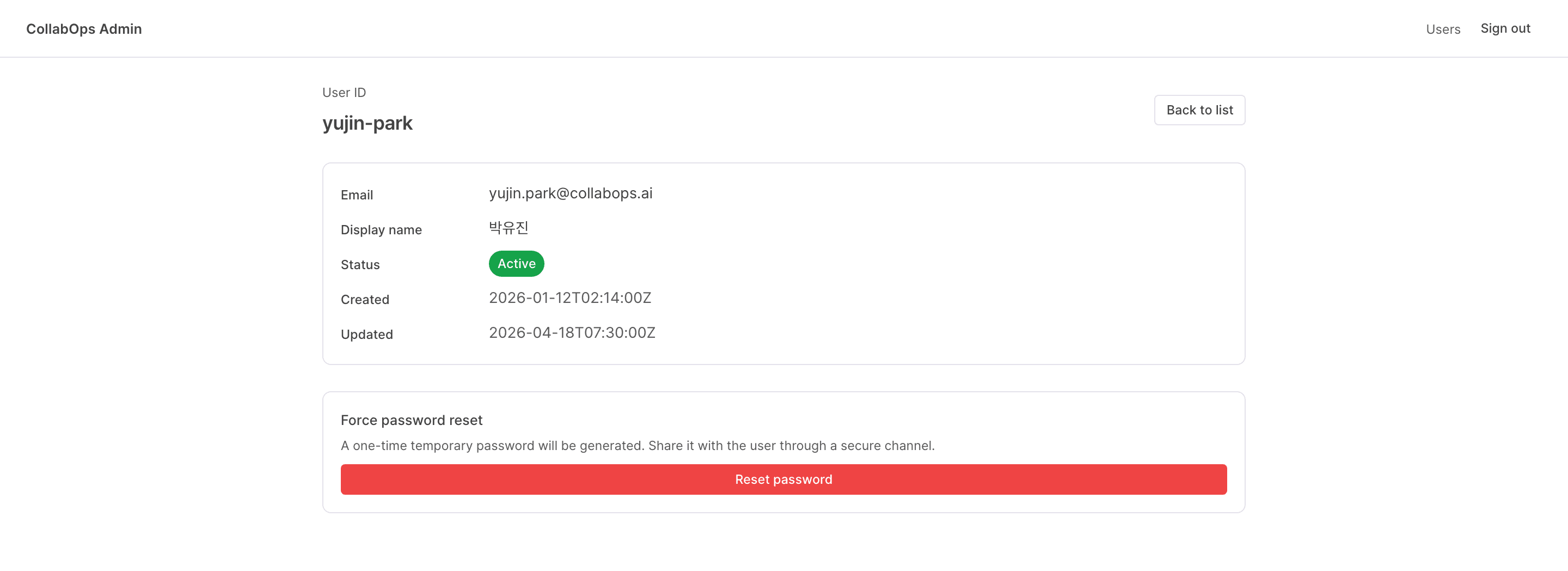
The detail screen also has a force password reset area at the bottom. For details, see the Force password reset page.
To return to the list, use the ‘Back to list’ button at the top-right of the detail screen or the ‘Users’ menu in the header.