

멤버 초대 및 권한 조회/추가
현재 선택한 워크스페이스에서 협업 할 사용자를 추가하거나 권한을 부여하는 기능입니다.
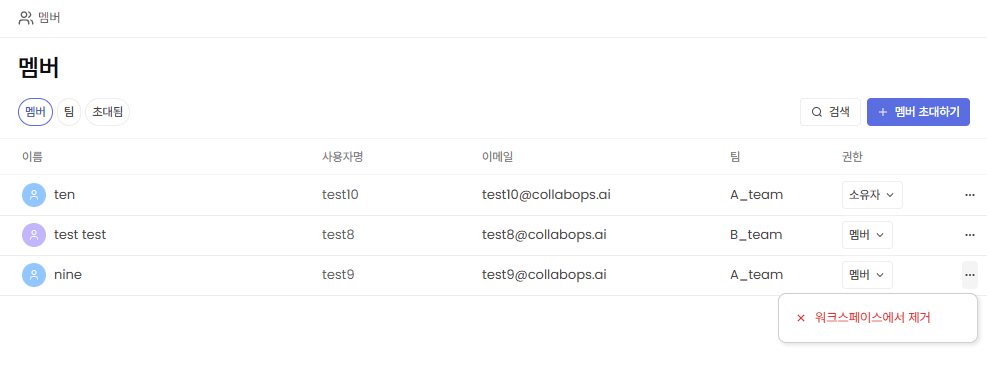
1) '멤버' 탭에서 현재 워크스페이스에 접근 가능한 멤버 리스트 조회할 수 있습니다.
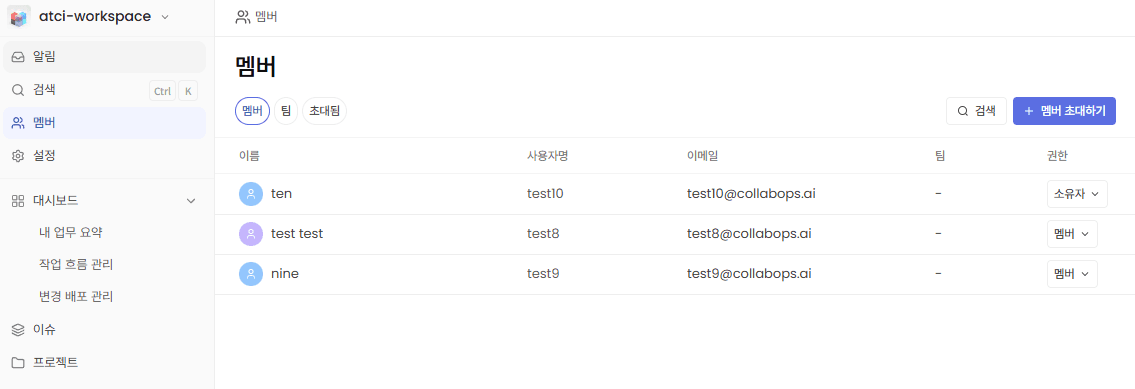
2) 우측의 '+ 멤버 초대하기'를 클릭합니다.
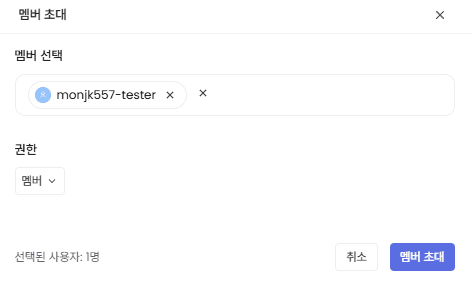
3) 초대하려는 멤버를 선택, 권한 선택 후 '멤버 초대' 버튼을 클릭하면 초대가 완료됩니다.
4) 멤버 리스트 우측의 권한을 클릭하여 해당 멤버의 권한을 변경할 수 있습니다.
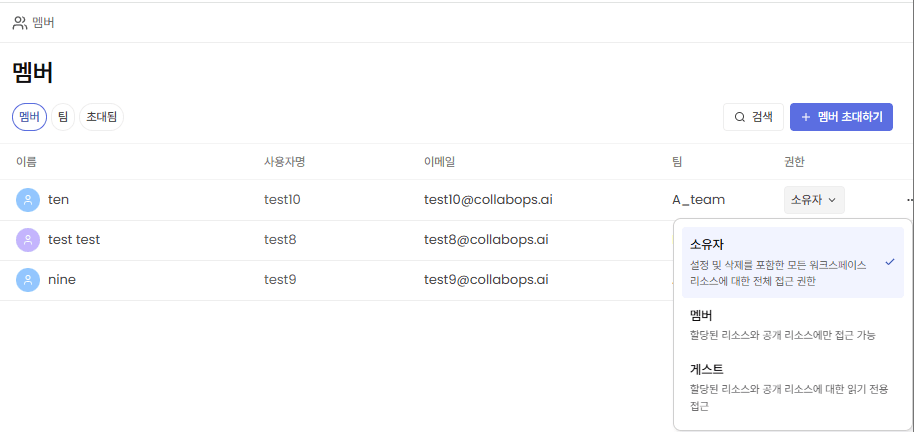
5) 권한을 선택하면 사용자에게 바로 적용이 됩니다.
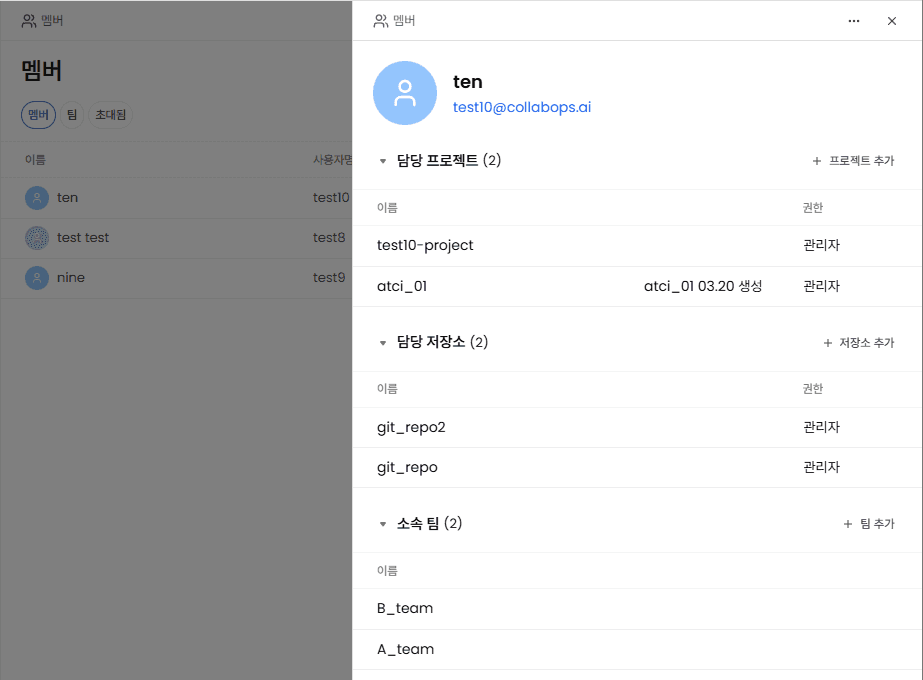
6) 멤버를 선택하면 프로젝트/저장소/팀의 권한 확인 및 추가/변경 가능합니다.
7) 멤버 리스트 우측의 더보기 아이콘을 클릭하여 멤버를 워크스페이스에서 제거할 수 있습니다.
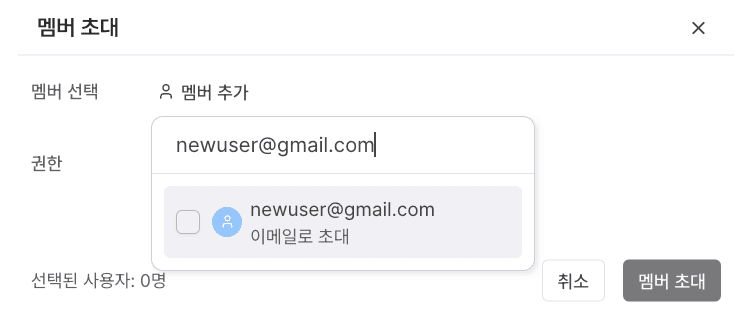
Inviting people without an account (by email)
People who don't have a CollabOps account yet can also be invited by email. Just enter the email as with the member invite above — CollabOps automatically detects whether it belongs to an existing member or someone without an account, and sends an invite email with sign-up instructions to the latter.
How the invitee joins
1) Click the accept link in the invite email.
2) Create an account on the sign-up page. The invited email is pre-filled, and email verification is skipped (clicking the invite link already proves email ownership).
3) After sign-up they are logged in automatically and taken to their received invitations; accepting an invitation there makes them a workspace member.
If the same email was invited to several workspaces, all of those invitations appear in the received-invitations list after sign-up.
Good to know
Expiry — invite links expire after 7 days; once expired, use reinvite to send a fresh link.
Cancelling — a pending invitation can be withdrawn, and cancelled links can no longer be accepted.
No duplicates — re-inviting the same email to the same workspace keeps a single pending invitation.